How to Use a Free Amazon FNSKU Generator for Your FBA Inventory
If you are a seller preparing your first shipment for Amazon FBA, you’ve likely encountered a common hurdle: the FNSKU. In this guide, we’ll walk you through how to use an FNSKU generator to streamline your labeling.
Unlike a standard UPC, the FNSKU is unique to your specific account and is the only way Amazon ensures you get credit for your sales. Using a dedicated generator helps avoid costly shipping errors.
What is an FNSKU and Why Do You Need It?
FNSKU stands for **Fulfillment Network Stock Keeping Unit**. While a UPC identifies a product type (e.g., "Blue Wireless Mouse"), the FNSKU identifies that specific product as *yours*.
If multiple sellers use the same UPC and "commingle" their inventory, Amazon might send a competitor's unit to your customer. By using an FNSKU barcode, you ensure that your specific inventory is tracked, which is vital for maintaining high seller ratings and preventing fraud.
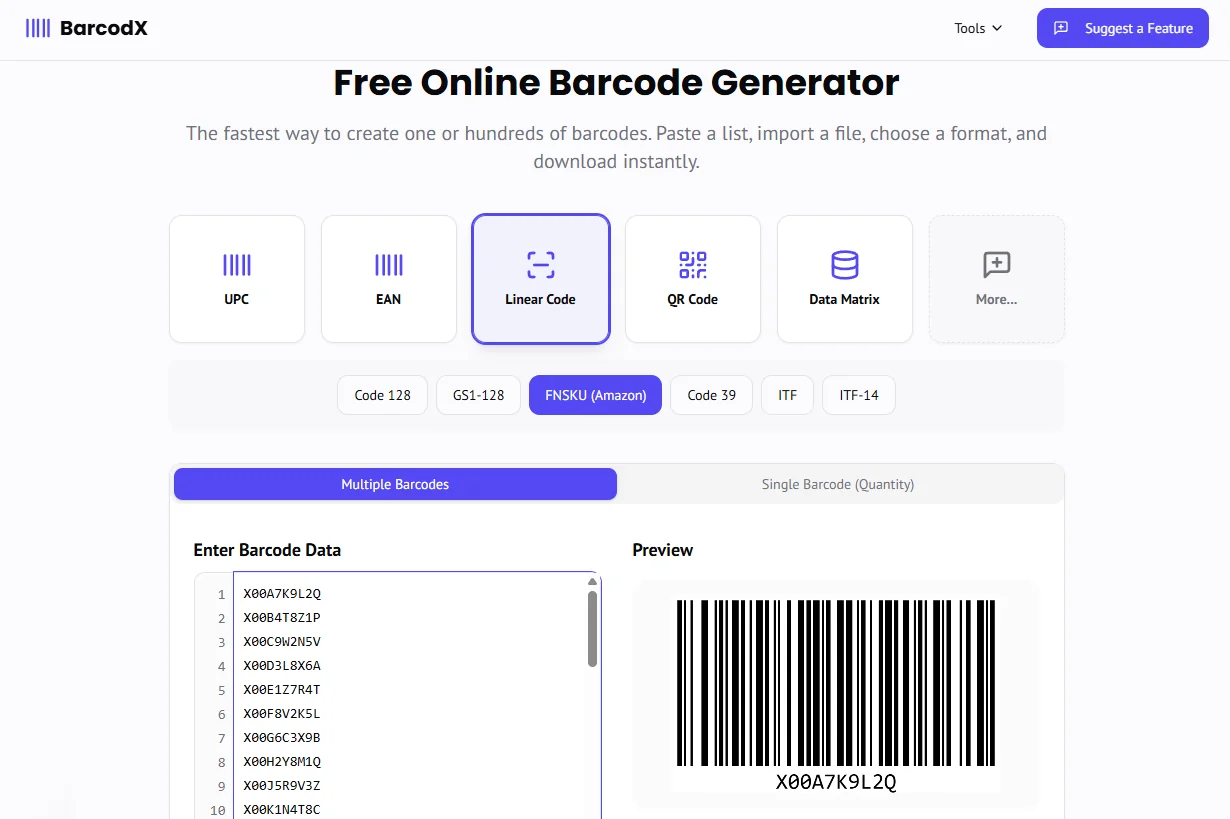
Step-by-Step: Generating Your FNSKU Barcodes
Most sellers find the Amazon Seller Central labeling interface a bit clunky. Using a dedicated online FNSKU generator allows for more flexibility, especially if you are printing labels in bulk or using a thermal printer like a Dymo or Zebra.
1. Locate your FNSKU in Seller Central
Before you can generate a barcode, you need the alphanumeric code provided by Amazon.
- Log in to Seller Central.
- Go to Manage Inventory.
- Find your product and look for the "FNSKU" column. It usually starts with "X00".
2. Enter the Code into the Barcode Generator
Once you have your X00-series code, simply paste it into our barcode generator. Ensure you select the FNSKU format, which uses Code 128 as required by Amazon.
3. Customize Your Label Size
Amazon has strict requirements for label dimensions. The most common size is 1" x 2-5/8" on US Letter sheets (30-up labels). If you are using a thermal printer, you can generate a single label at 4x6 or 2x1 inches. For this, our visual editor is the perfect tool.
4. Download and Print
Download your generated barcode as a high-resolution PNG or PDF. When printing, ensure your "Scale" is set to 100%. If the printer shrinks the barcode to fit the margin, the scanners at the Amazon fulfillment center may fail to read it, leading to "Unsellable" inventory.
FNSKU Frequently Asked Questions
Best Practices for FBA Labeling
- Cover the UPC: Your FNSKU label must be the only visible barcode on the product. If the original manufacturer UPC is visible, cover it completely with your new label.
- Placement Matters: Avoid placing barcodes on curves, corners, or edges of the packaging. A flat surface ensures a clean scan.
- Test Your Scan: Before sending 500 units to Amazon, use a free barcode scanner app on your phone to see if the FNSKU reads correctly.
Start Generating FNSKU Labels Now
Use our Free Amazon FNSKU Generator to get your products retail-ready without fighting with complex software.